
INTRODUCTION
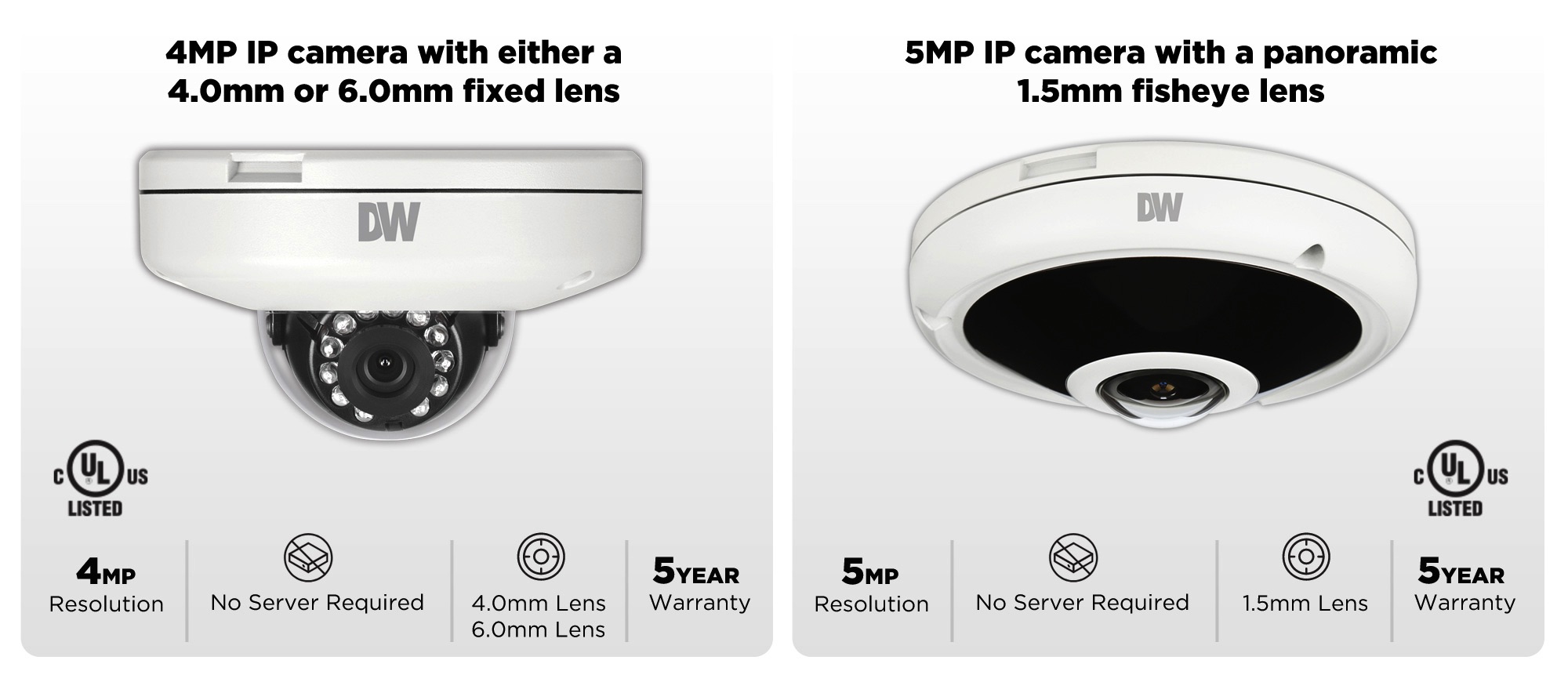
This installation guide will explain all the required steps to install the Ignite Prism App on your new Digital Watchdog camera.
It consists of the following sections:
- Installation and configuration of the Ignite Prism App
- Field of View (FOV) adjustments of newly installed cameras
Please read this guide before proceeding with any installation or configuration of Ignite Prism App. Please get in touch with Ignite Prism Support with any questions: support@igniteprism.com
Important!
Before you start the installation of the Ignite Prism App, please make sure that:
- The camera is plugged into the local network using a PoE switch/injector.
- The PoE switch/injector is powered on and plugged into a local router/switch.
- The local network on which the camera resides can communicate to the Internet and connect to the Ignite Prism cloud service (iapi.prismsl.net) over ports 80 and 443.
- A Micro SDXC class card (min 32GB size) with reading speed up to 100MB/s and video speed C10, U1, A1 is installed. Ignite Prism recommends SD cards manufactured by SanDisk, Sony, or Samsung.
- Do not cover (close up) the camera’s dome until the final FOV (Field of View) alignment is performed (see Section 3).
Installation and Configuration of the Ignite Prism App
Software Download
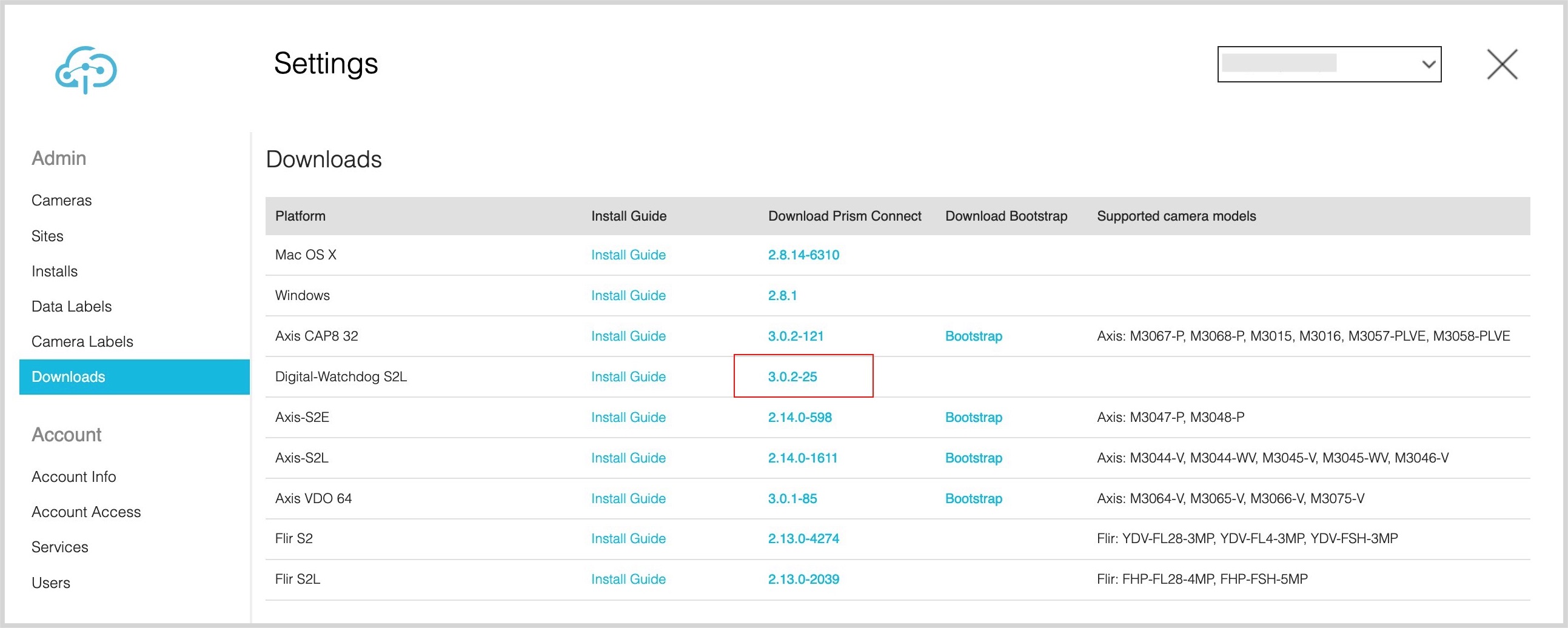
Go to: app.igniteprism.com > SETTINGS > Downloads and download Ignite Prism App installation file for Digital Watchdog S2L platform.
Token
Get an Ignite Prism Installation Token
If you are a new customer, an integrator, or if you are just not sure if you have an Ignite Prism account:
contact Ignite Prism via: support@igniteprism.com to set up your account or recover your user information. When your account is created, you will also receive your Installation Token.
If you already have an Ignite Prism customer account, then please do not hesitate to contact your Account Manager or reach out to support@igniteprism.com to get your Installation Token.
If you are Ignite Prism reseller partner then please follow these steps to get your token:
- Sign into partner.igniteprism.com
- On the Managed Accounts page, click on the “Generate” link on the line for the customer account for which you are installing the camera.
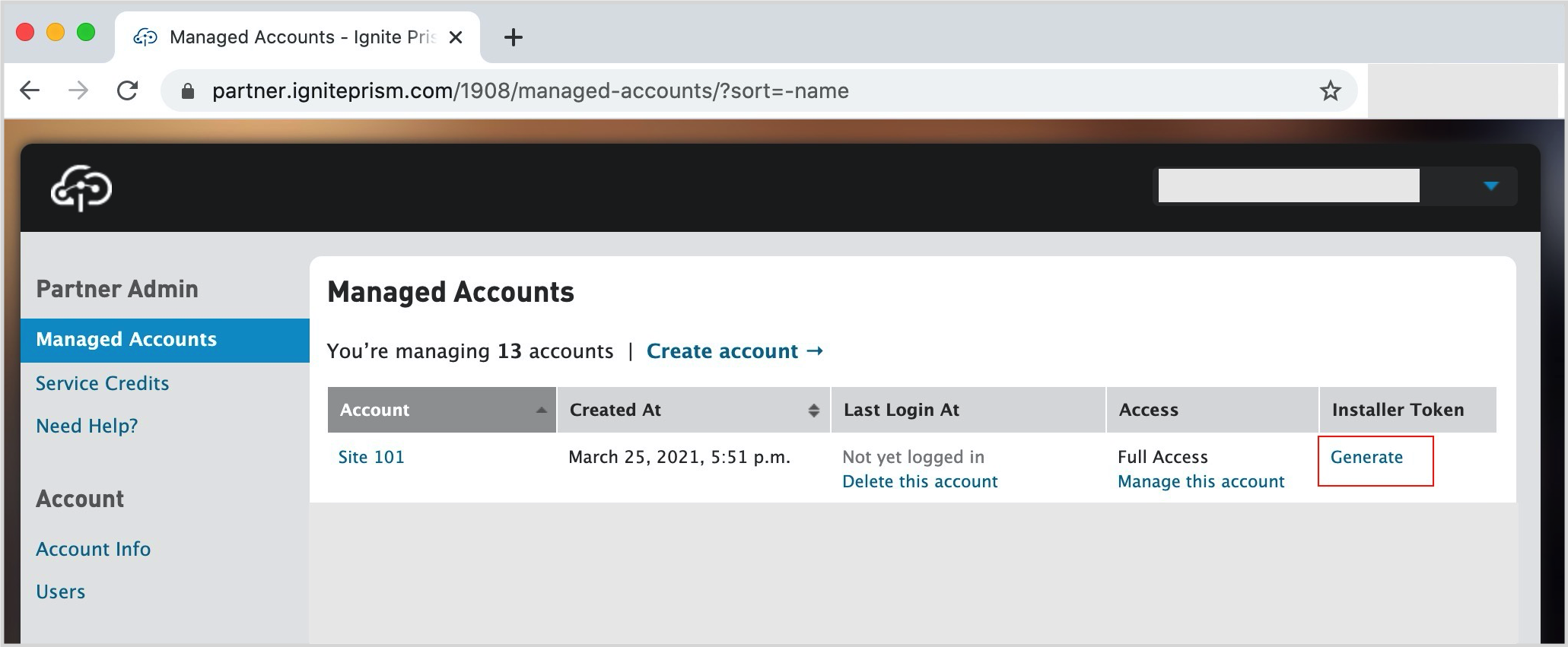
- Generate the Installer Token and Copy it.
Camera discovery
Mount the camera to the ceiling or wall and connect it to the network and power.
The installer will be required to perform a few modifications on the cameras. Some additional tools might be necessary.
- Please remember the MAC address of the camera (it is written on a sticker on the camera)
- To locate the camera’s IP address please use:
- DW IP Finder (for Windows or Linux OS),
- LanScan (for OS X),
- Colasoft Mac Scanner (for Windows),
or other similar tools to locate the camera.
If the DHCP server is enabled, it should locate the camera automatically upon which the device can be found by the MAC address. If the DHCP server is disabled, then you must set your computer’s IP address to a free address in the range 192.168.0.1 to 192.168.0.254. Once the camera is located, access it using a web browser.
Default credentials for your device are
Default IP address: 192.168.1.80
username: admin
password: admin
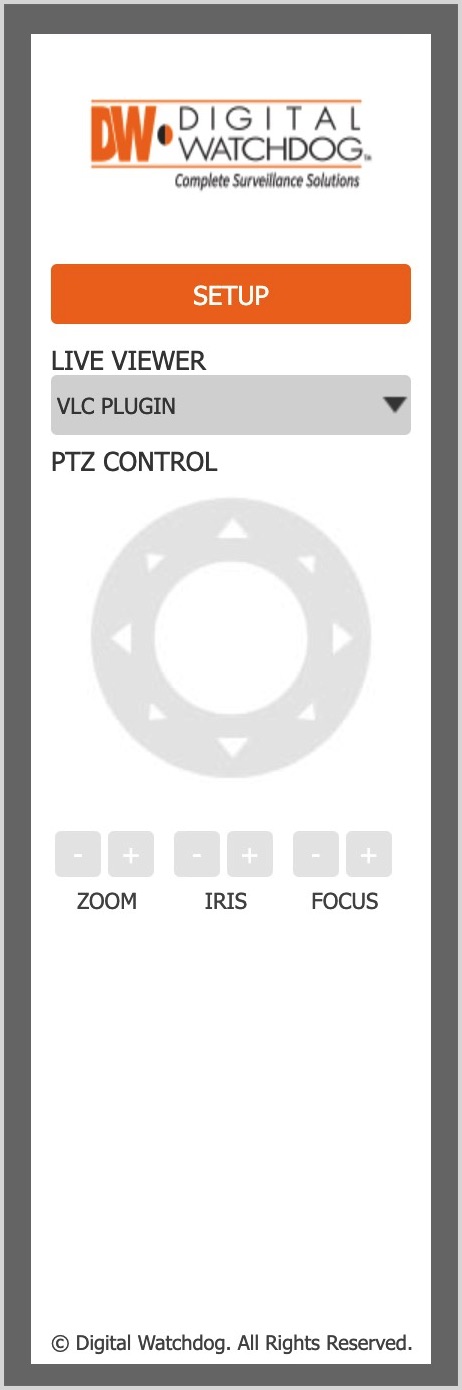
Sign In into your camera and click Setup:
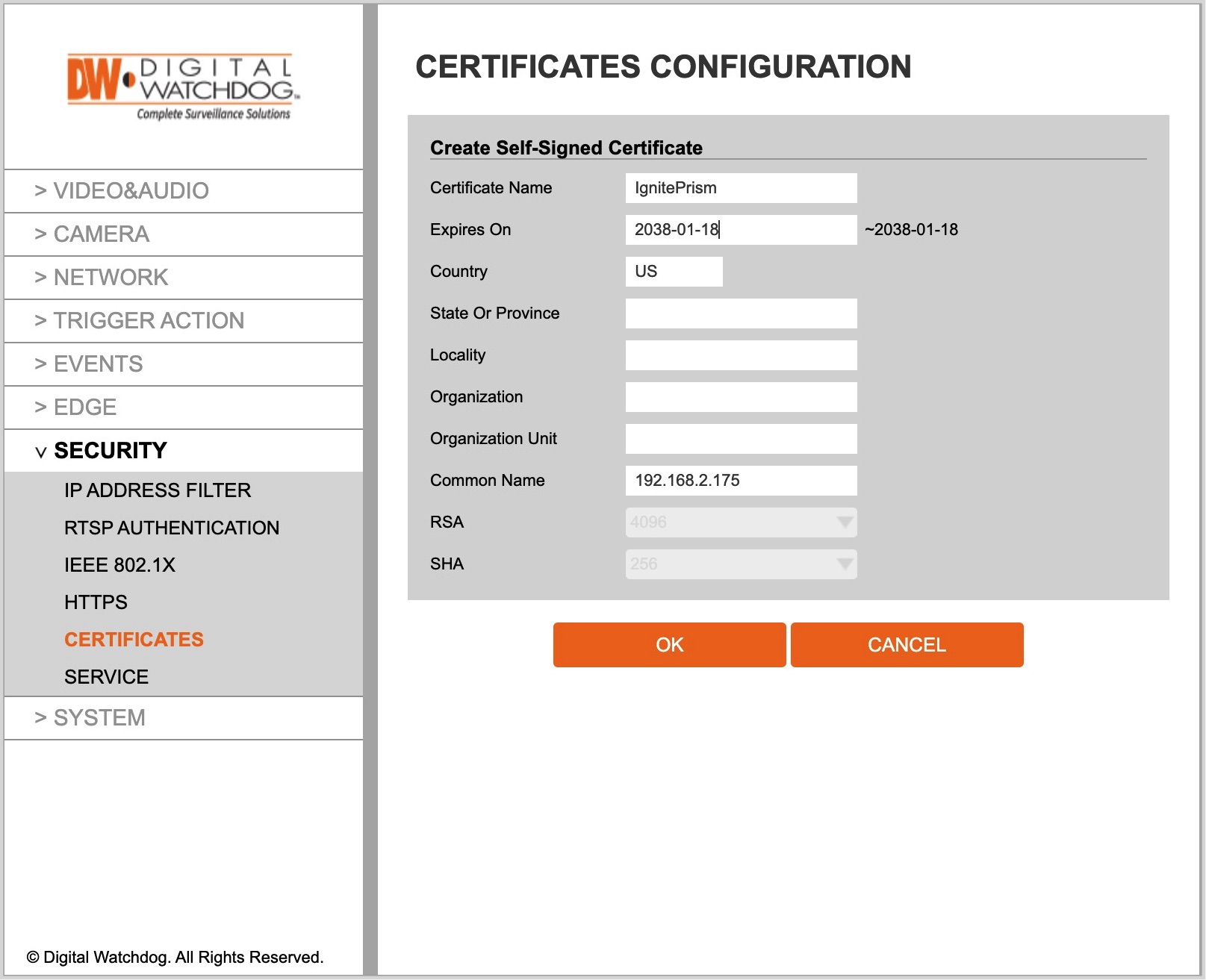
Create a Self-Signed Certificate
Go to: Security > Certificates > Create Self-Signed Certificate
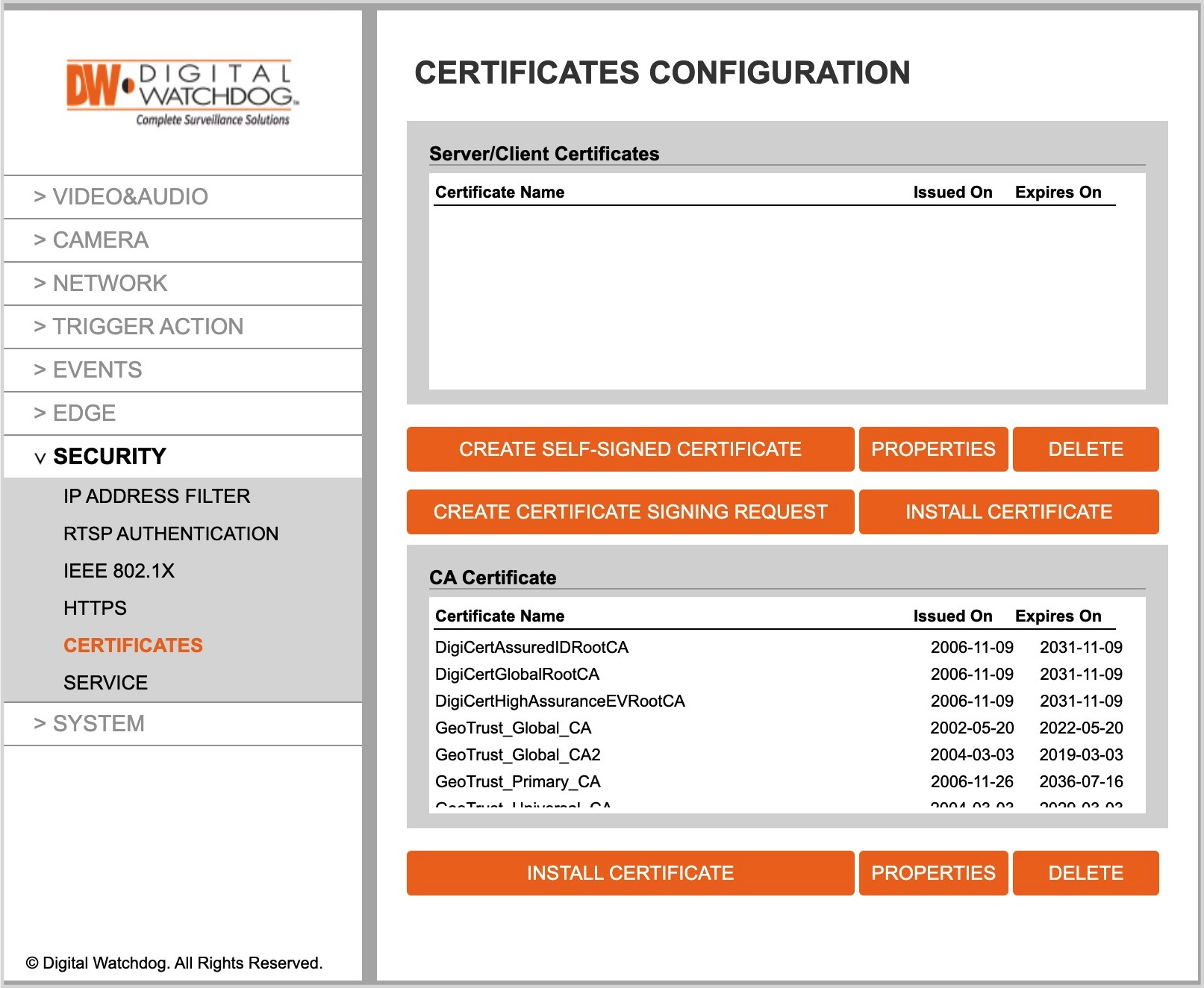
Set: Certificate Name, Expiration Date, Country, and click OK
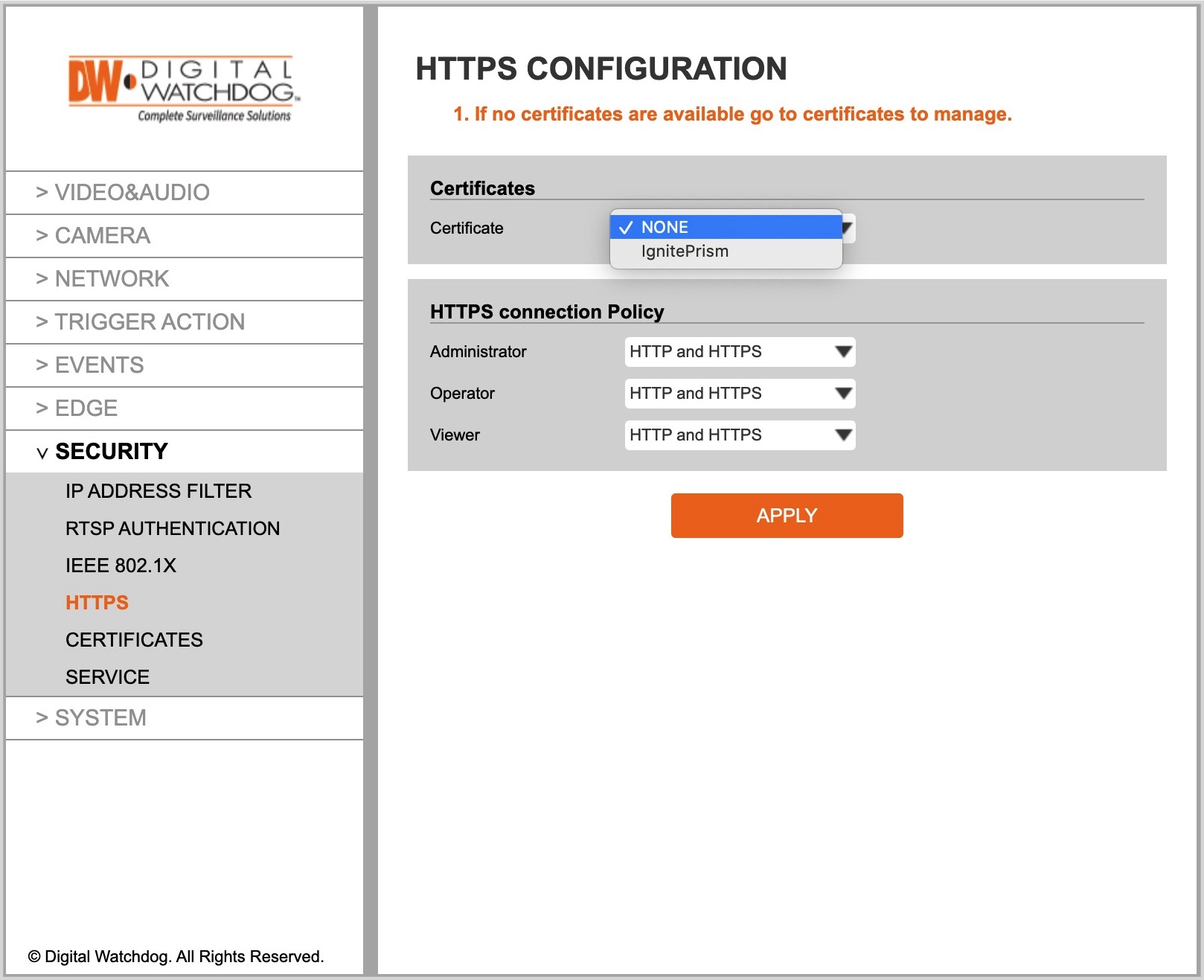
Enable HTTPS protocol
Go to: Security > HTTPS > Select the new certificate > Apply
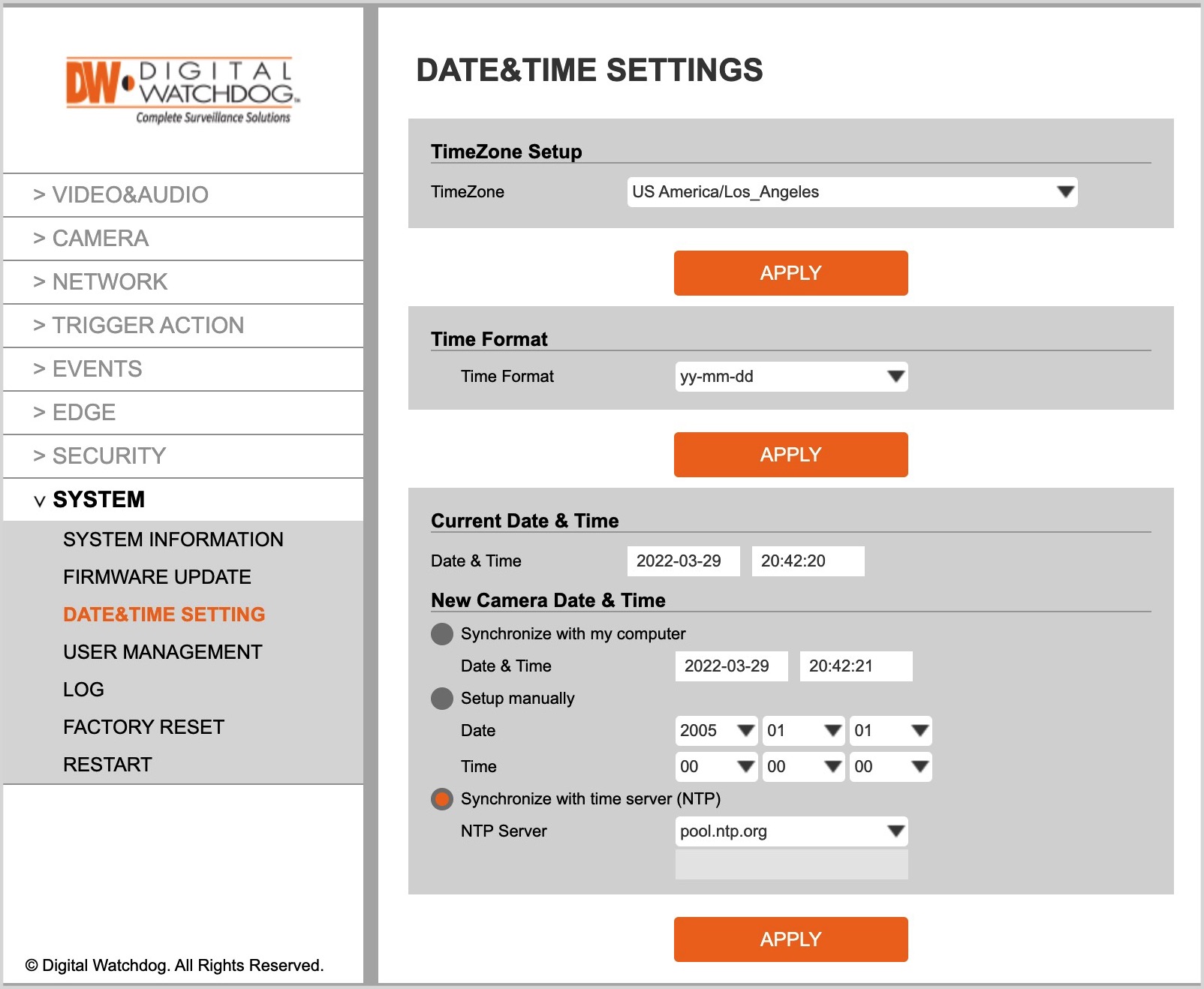
Date and Time Zone
Go to: System > Date&Time Settings: choose TimeZone from the list > Apply
Synchronize with time server (NTP) pool.ntp.org > Apply
SD card
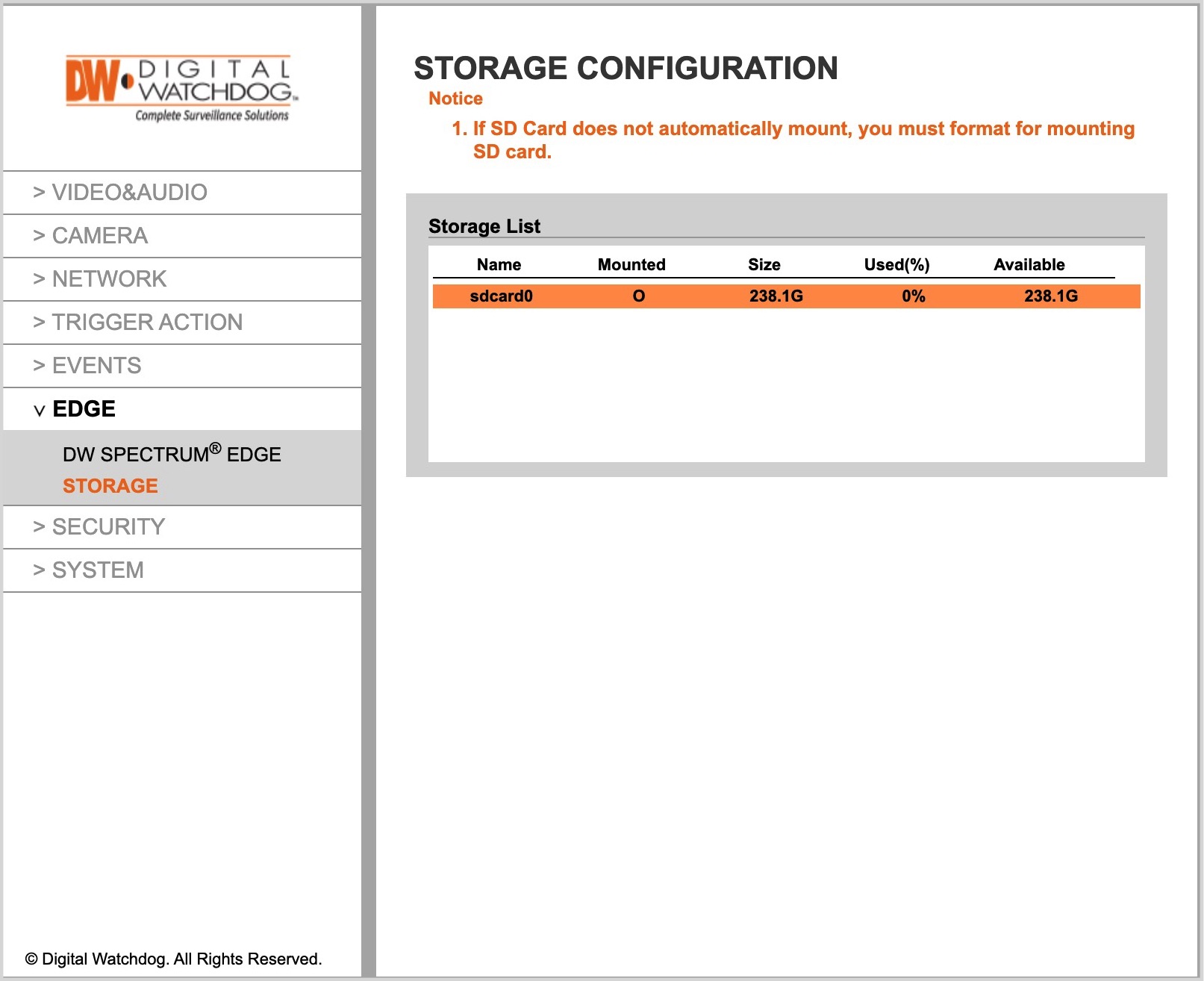
Format SD card to ext4 file system
Go to: Edge > Storage > Select SD card > Format
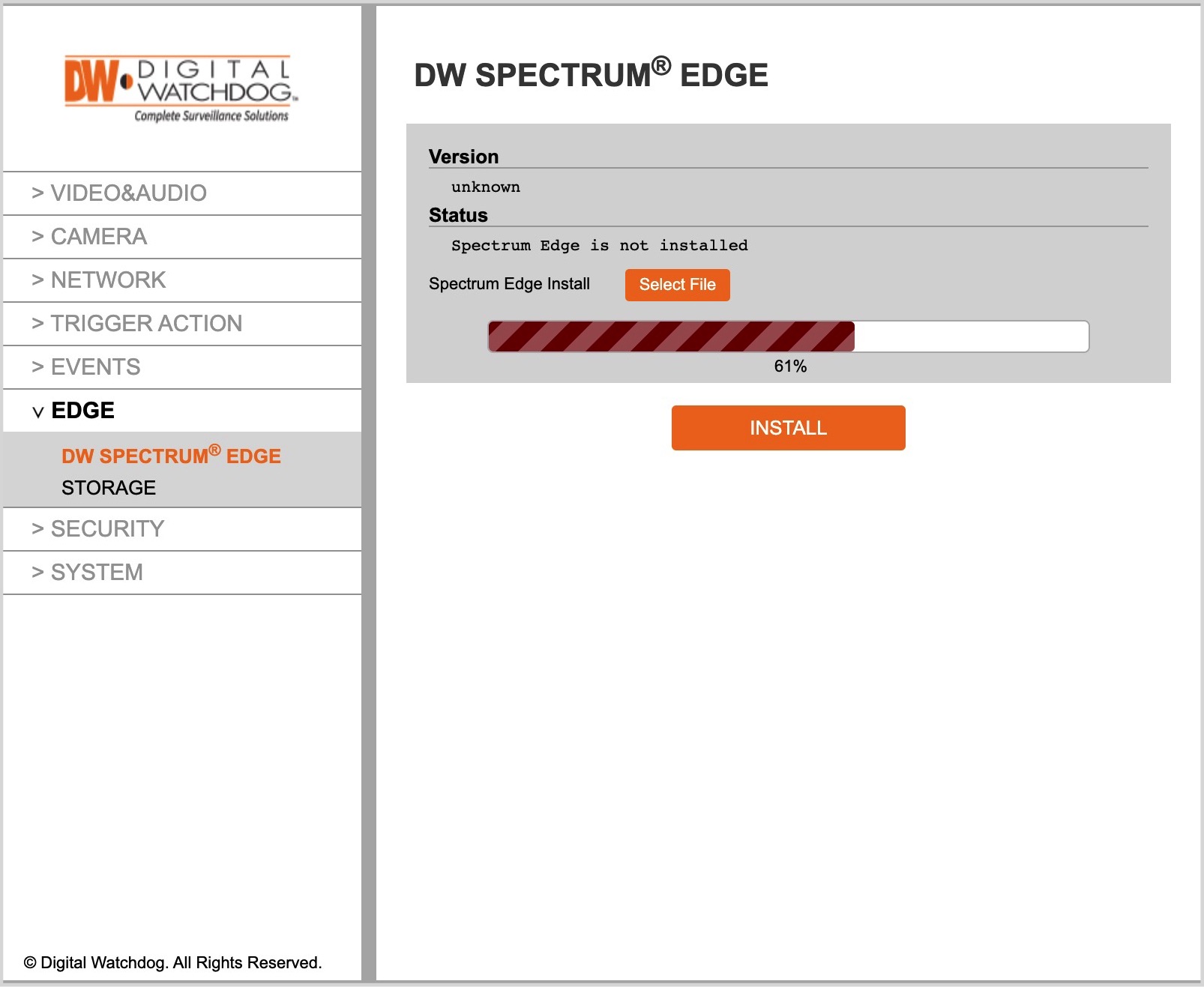
Ignite Prism App Install
Go to: EDGE > DW Spectrum Edge > Select Ignite Prism App installation file downloaded from app.igniteprism.com > INSTALL
A confirmation dialog will be shown when the app is successfully installed, and the camera will restart.
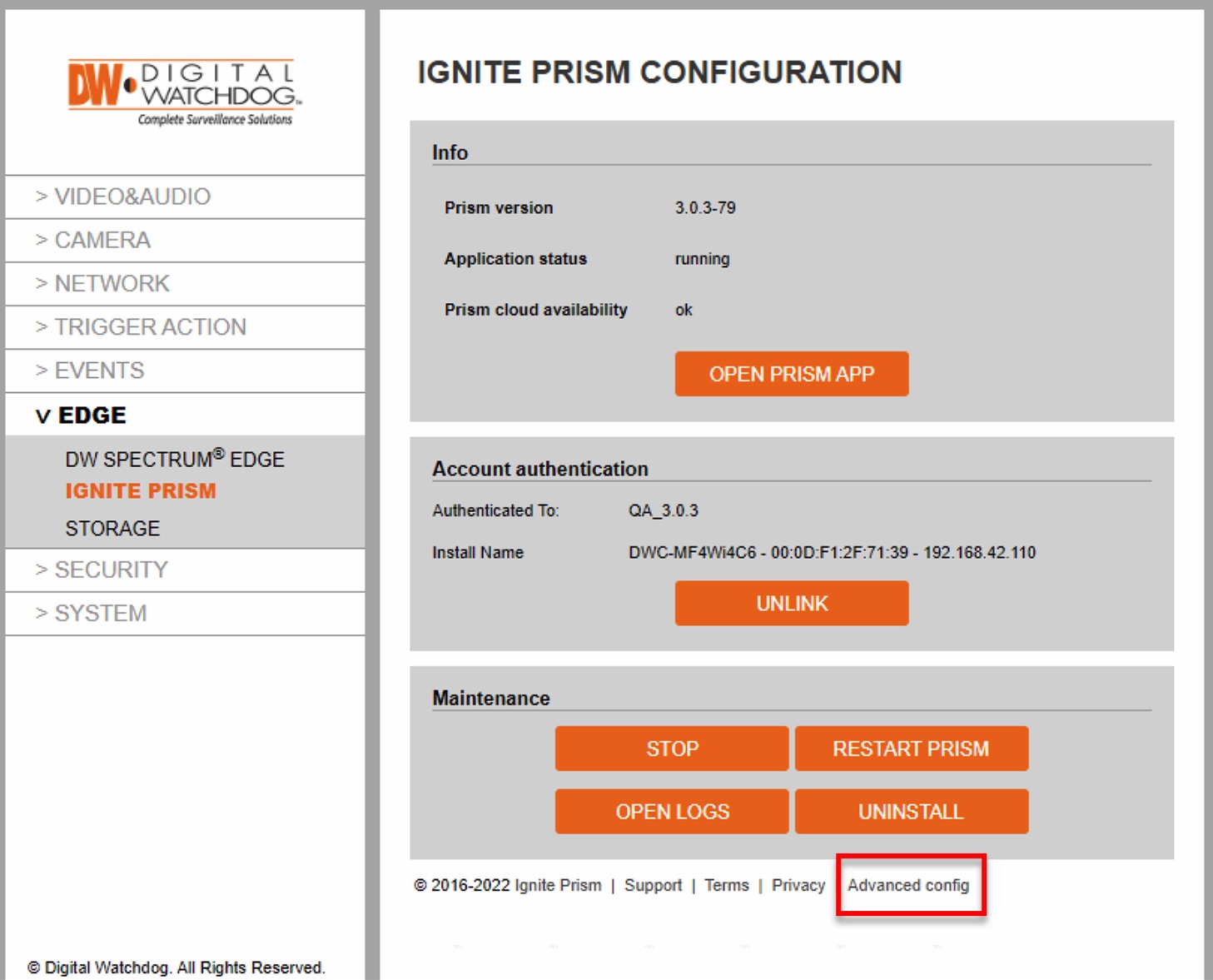
After the installation is complete, refresh the web browser so that the new IGNITE PRISM page appears under the EDGE section.
Authentication
Enter the Installation Token you received from Ignite Prism to authenticate the camera and click AUTHENTICATE. It will authenticate the camera and create a new device in the Ignite Prism App.
If there is a proxy, the configuration can be set on the Advanced config page. Enter a valid proxy IP address + port number and press SET PROXY.
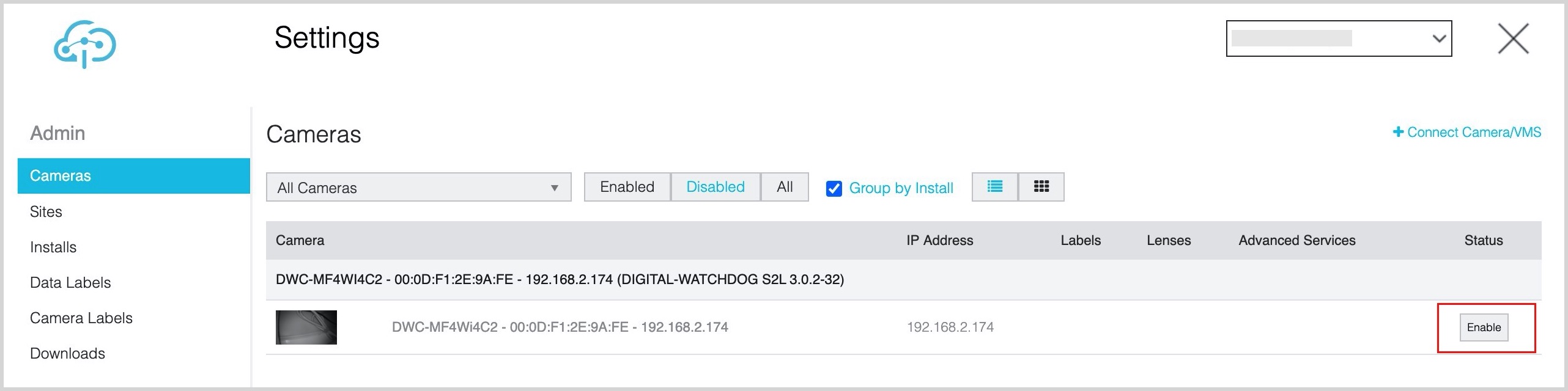
Go to: app.igniteprism.com > SETTINGS > Camera and enable a new camera:
Important!
Initially, the image snapshot might appear as a black square, but after being enabled for approximately 30 minutes, the camera will generate a background image, and the image will update on the Settings page. Do not make any configurations during this time.
- Configure any desired lenses, advanced analytics (tripwires and/or AOI’s).
- Close the Settings interface and view the camera on the CAMERAS page.
- If you do not see any output from the new camera, ensure that the camera is still powered up and verify the required outbound Internet connectivity.
Final Field of View (FOV) Alignment
Once the App configuration is completed and the device is mounted, adjust the camera view by rotating the lens on the new camera and check its view in the Ignite Prism App or the camera’s live view page.
Please note: it can take up to two minutes for the new enhanced image to show up in the Web Application.
An Ignite Prism Support representative can assist you with the FOV (Field of View) alignment process via remote access application.
Only after the FOV tuning is complete, attach the camera’s dome.
You’re all set!
Troubleshooting
If you have any questions about this guide or need help during the process, please contact Ignite Prism at support@igniteprism.com.
Comments
0 comments
Please sign in to leave a comment.