
In case a camera does not operate properly: does not provide a counting data or misses images, etc. - it should be hard reset.
The recovery procedure requires Windows OS. In order to perform camera recovery, follow the next steps:
- Download Ambarella_AmbaUSB_v3.4.5 from Dropbox:
https://drive.google.com/file/d/0B95OHCvpmQIAcllpWlVZcjVtMXM/view?usp=sharing - Also, download the firmware which will be using. It has to be .bin file, i.e.:
https://drive.google.com/file/d/0B95OHCvpmQIAODRZV3E4MGFrWEE/view?usp=sharing - Based on server type (Win 32-bit or 64-bit) select proper Setup file to install;
- Once Amba USB is installed launch Ambarella EVK Firmware Downloader;
- Connect USB cable to S2L camera and press the Reset button on a camera while connecting USB cable to the laptop;
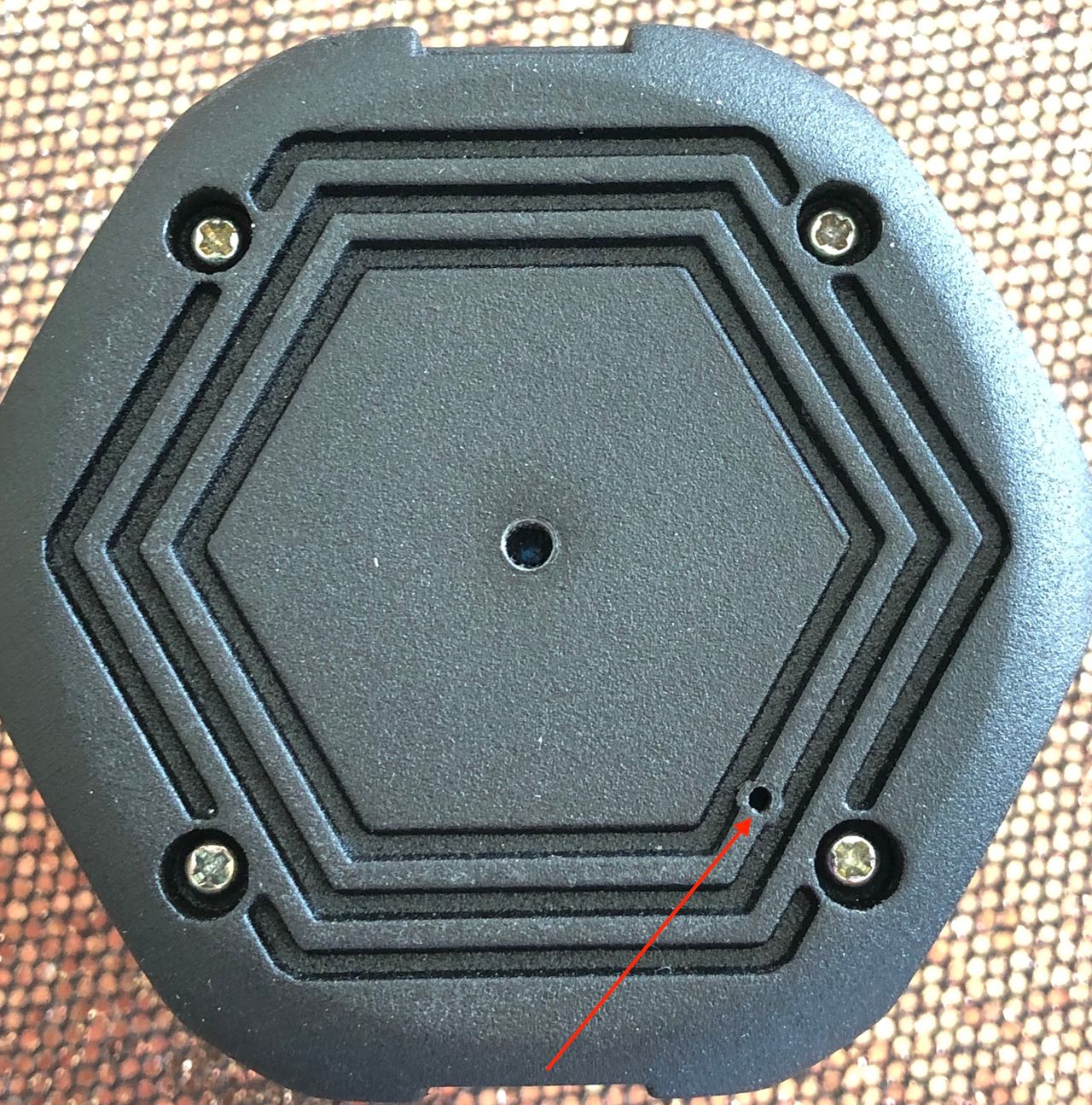
Please, take a notice the reset button is not easily accessible. You will also need a tiny pin that could fit into the perforation.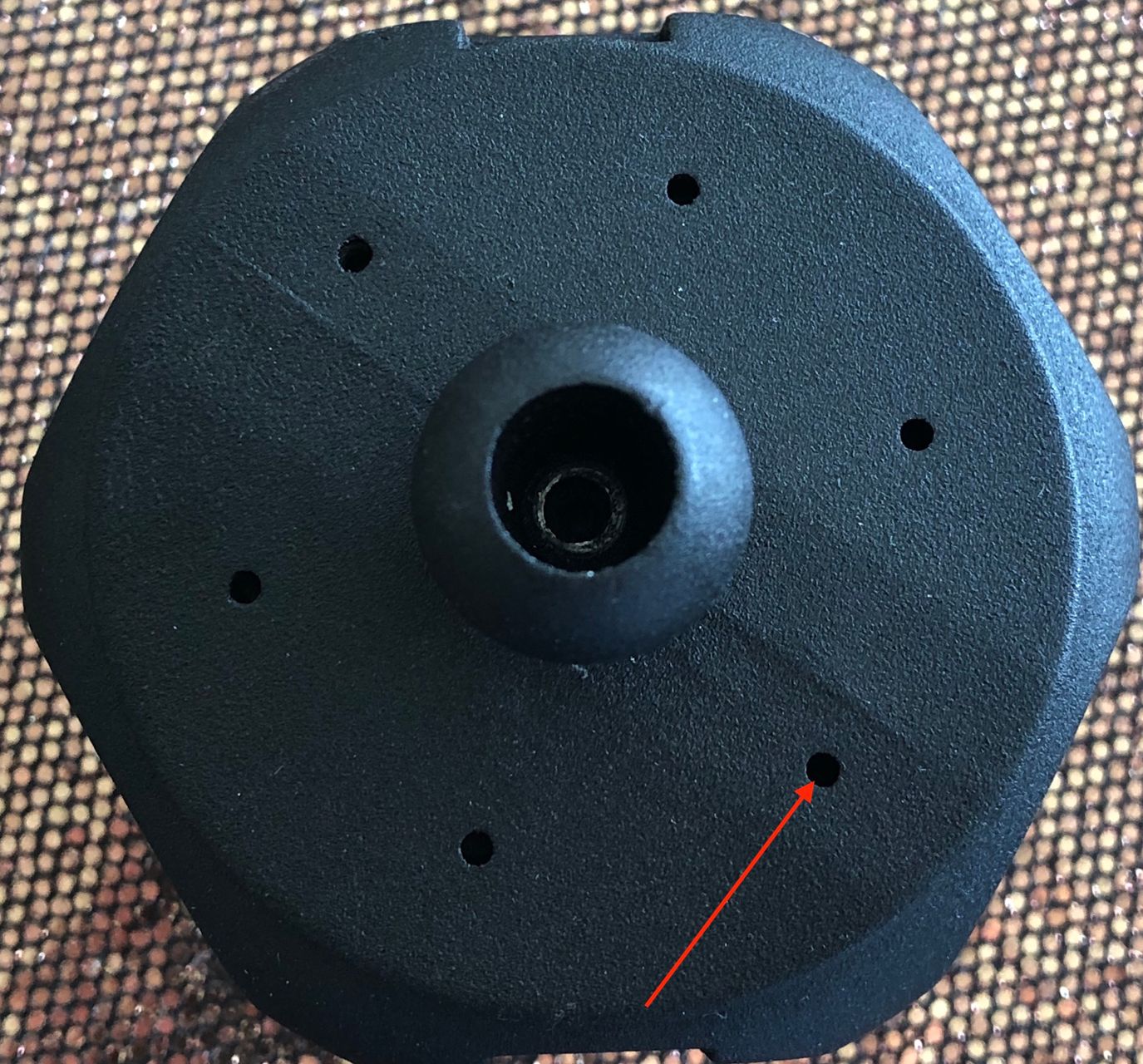
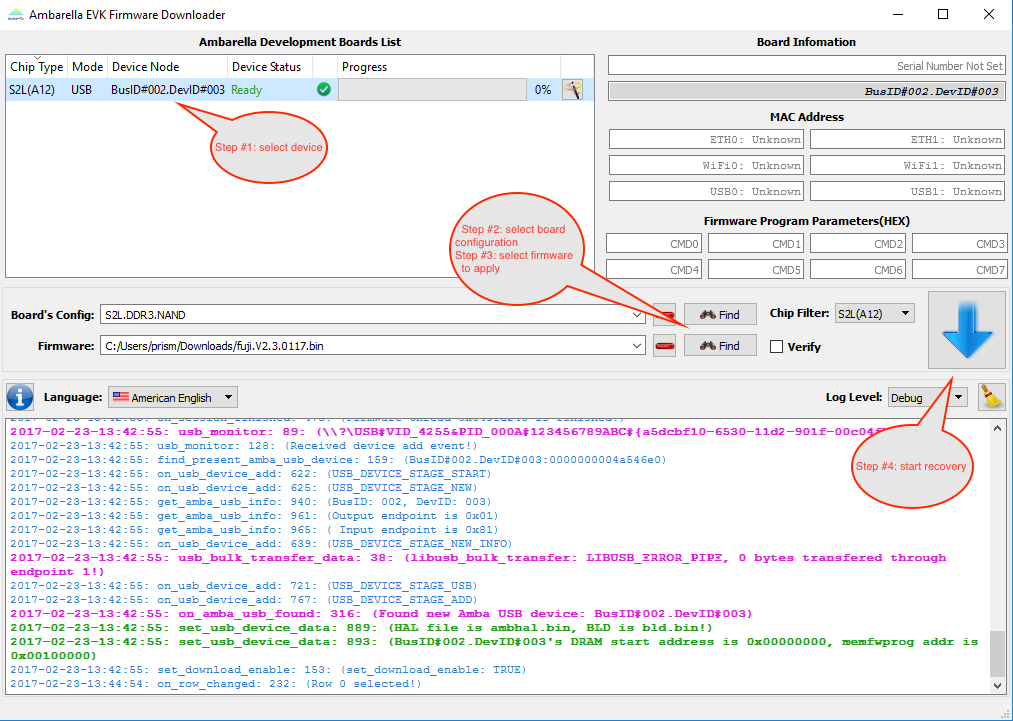
- Once connected a new device will show up in Ambarella Development Board List:
a) select the device;
b) select Board’s Config: i.e. S2L_Nand(32bit DDR3)
c) select Firmware to upload, i.e.: C:/Users/prism/Downloads/fuji.V2.3.0117.bin
d) click on a blue arrow to start recovery. It will start downloading, programming and finally reboot the device.
 Lastly, disconnect a camera from the laptop and proceed with the installation.
Here you can find the full procedure of the installation: Installation and Configuration: Flir
Comments
0 comments
Please sign in to leave a comment.